
macOS app
Run DAIMON on a Mac with the desktop app — visual policy editor and a local processd-mcp kernel.
Use this when the machine in front of you is a Mac and you want a GUI: edit the sandbox policy, start/stop the kernel, watch logs. The app brand is DAIMON; the kernel binary is still processd-mcp.
macOS 13+ (Ventura or later) · Apple Silicon and Intel.
Install
- Open daimon-hq/release.
- Download the macOS
.dmgfrom the latestgui-v*assets. - Open the disk image and drag DAIMON into Applications.
Ubuntu/Debian .deb desktop bundles live on the same release page if you want the GUI on Linux instead of the headless binary.
First run
- Launch DAIMON.
- Edit the sandbox policy in the GUI (read-only / read-write paths, network mode). The app writes canonical
version: 2YAML — same schema as Configuration. - Start the managed
processd-mcpservice from the app. It runs on this Mac, loopback by default. - Copy the MCP URL (and JSON) from the overview, then connect a client.
Because the kernel is local, you usually do not need Tailscale. If you later bind it on a tailnet, the same no-TLS rules apply.
What the app does
Visual policy editor and YAML inspect/validate via the kernel admin CLI. Launch, stop, and monitor the local kernel.
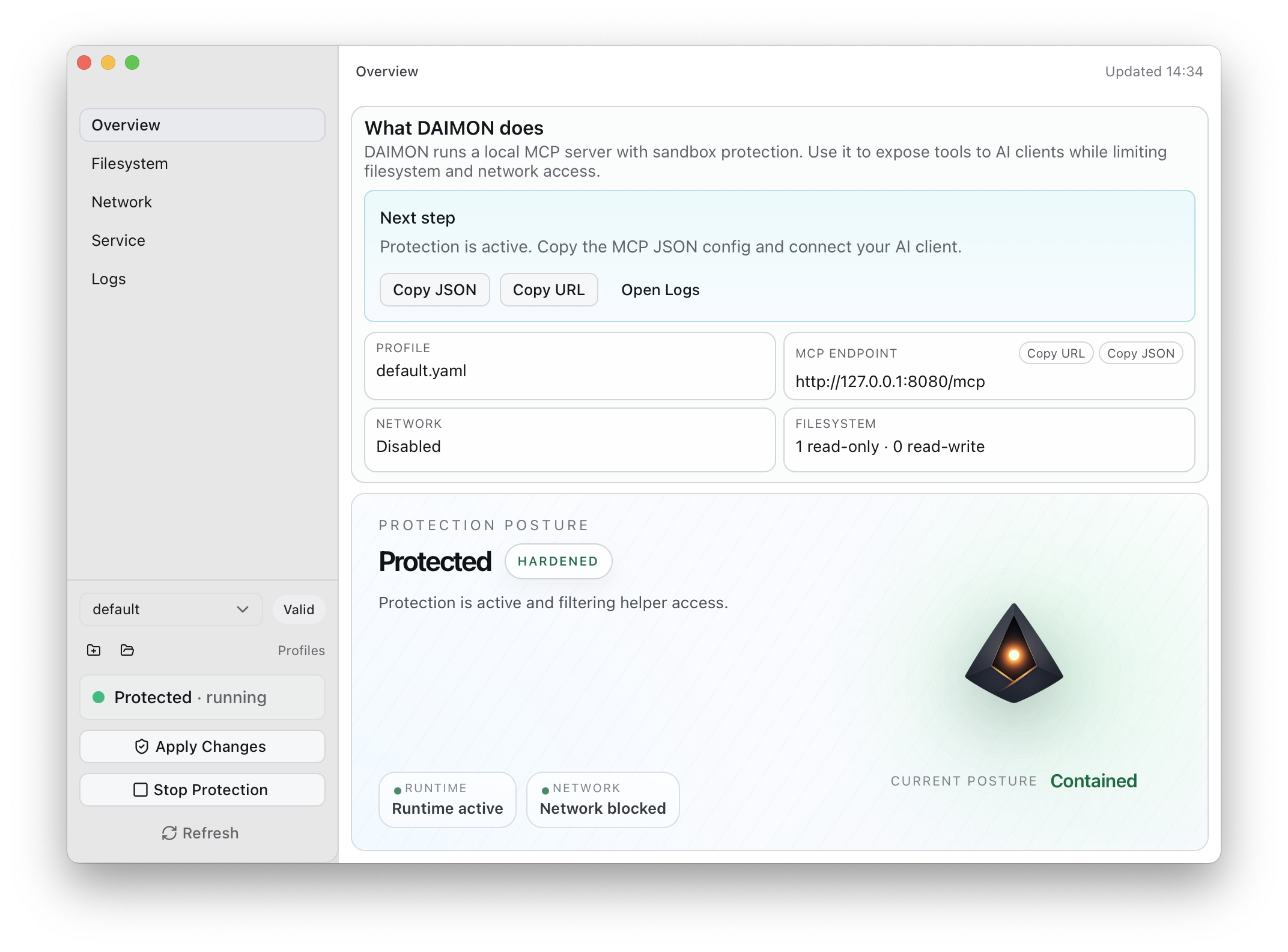
Runtime dashboard
Start and stop the local MCP kernel, copy the endpoint, and check health from the main window.
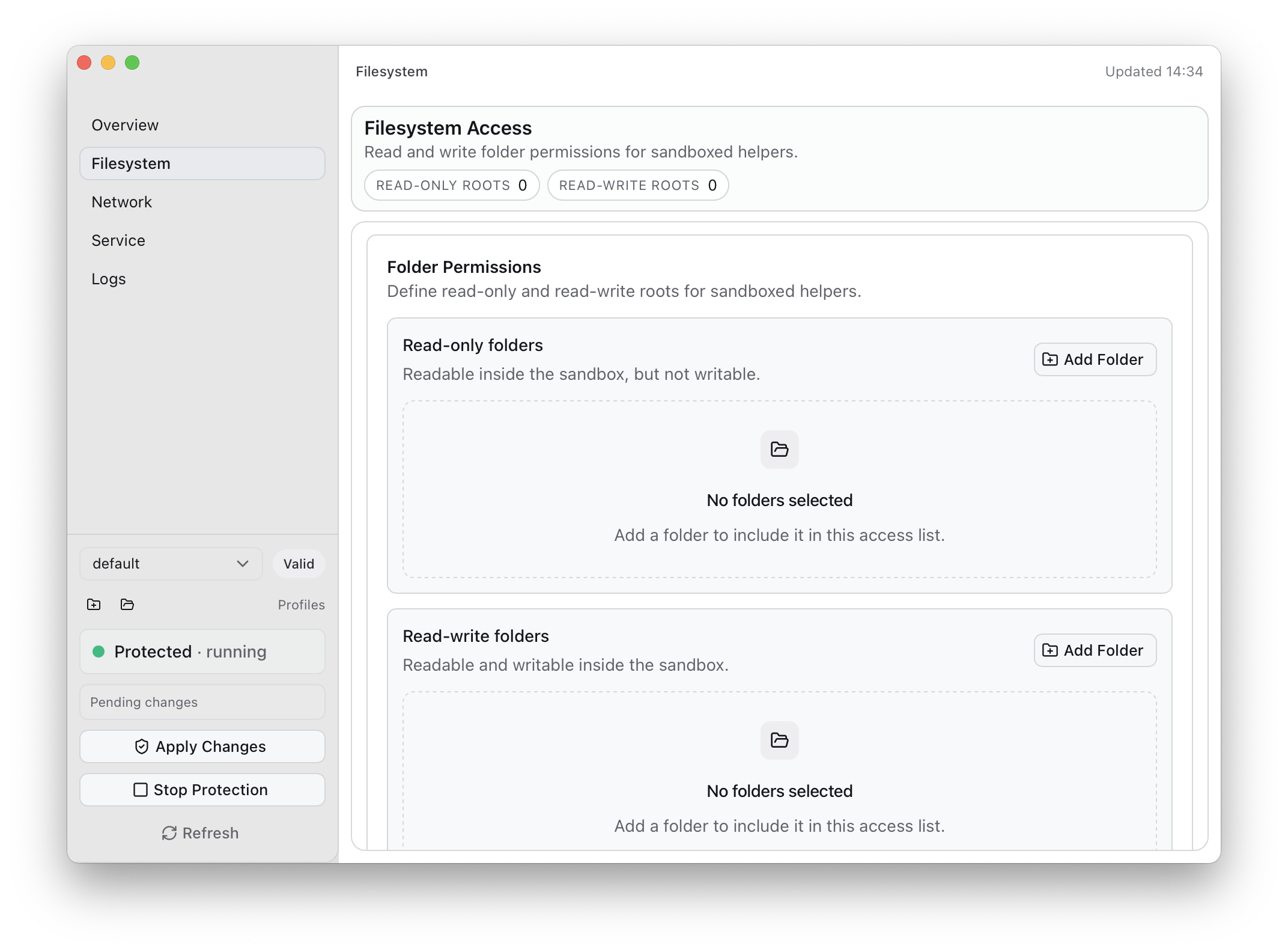
Filesystem policy
Whitelist read-only and read-write directories. The kernel keeps the agent out of everything else (for example SSH keys).
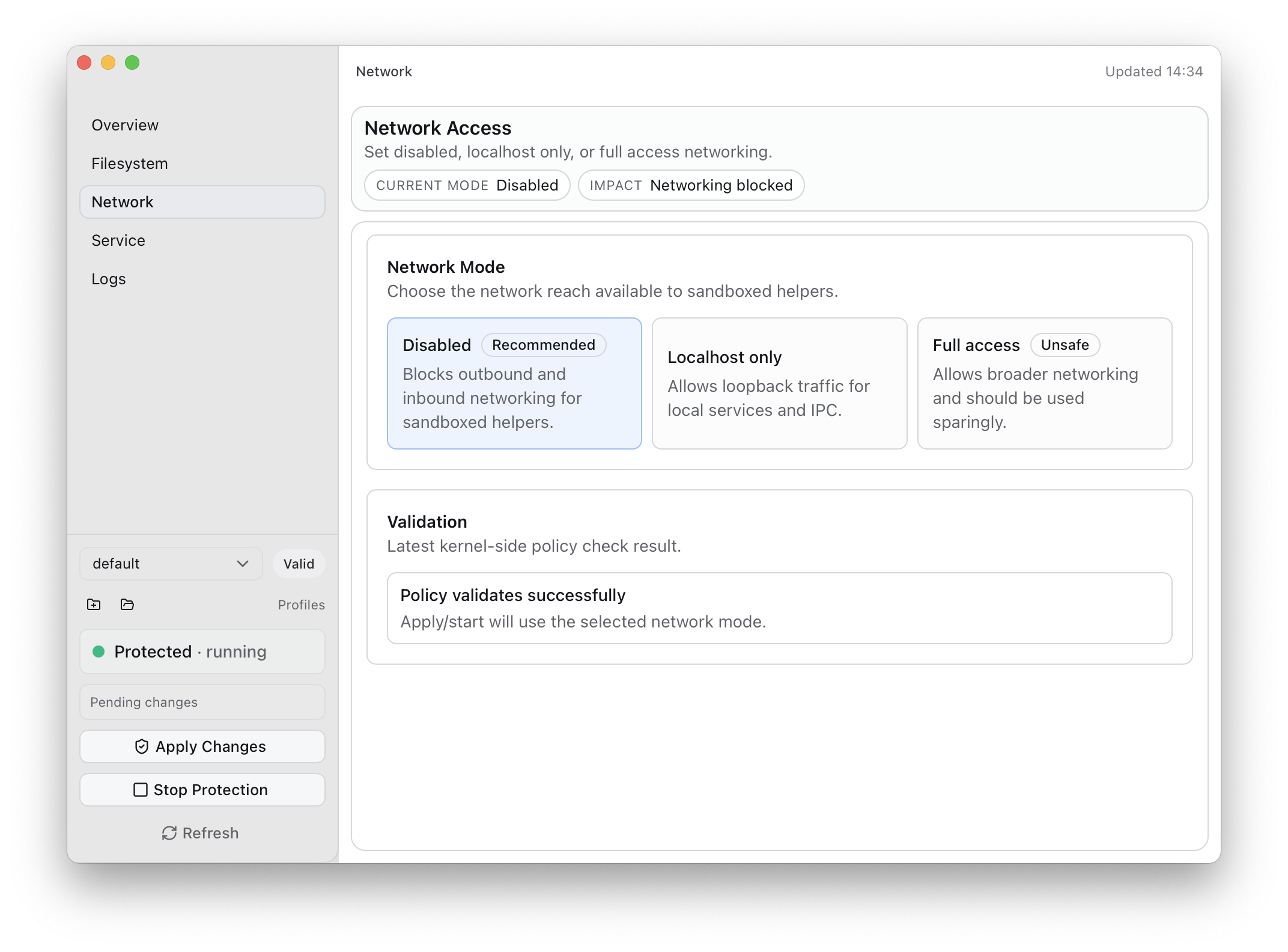
Network isolation
Block all network, allow localhost only, or leave it open.
It does not replace the sandbox cluster. For many isolated agent workspaces, use the manager image.